How to Change Lead Stage?
Overview
The Lead Stage helps categorize leads based on their disposition after evaluating their interest. By default, the lead stage remains unchanged until updated by the lead owner. The Lead Stage is a critical tool for tracking and managing the progress of leads through your sales pipeline, ensuring timely follow-ups and better conversion rates.
Steps to Change the Lead Stage for One Lead
There are different ways by which you can change the lead stage
Method 1: From the ‘Manage Leads’ Page
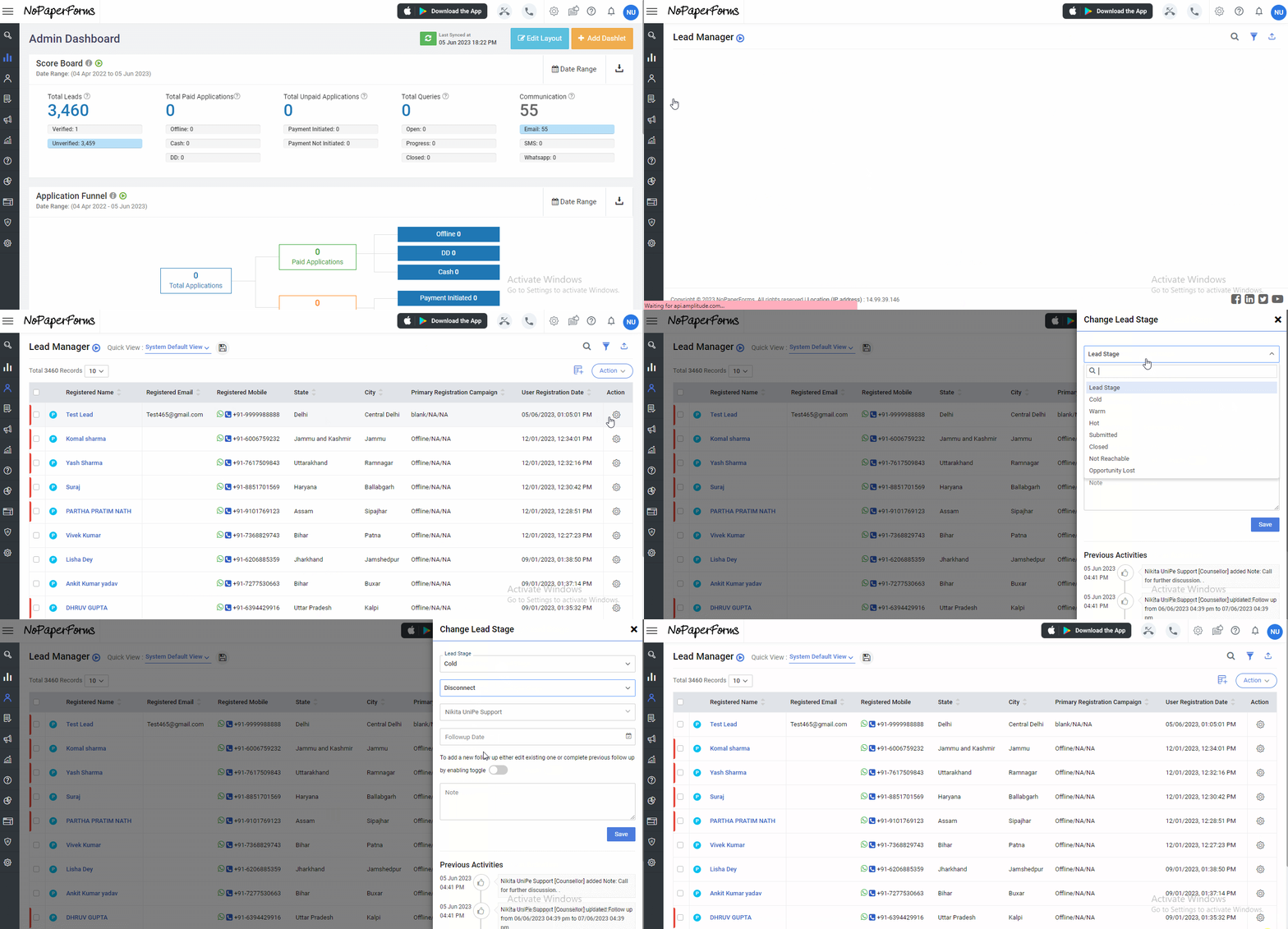
- Navigate to Leads Manager > Manage Leads.
- Find the lead you want to change the lead stage for and click on the (located on the right side of the lead).
- Select ‘Change Lead Stage’ from the dropdown menu. A ‘Change Lead Stage’ box appears.
- In the pop-up:
- Choose the Lead Stage and Lead Substage from the dropdown.
- Add Lead Owner’s Name, Follow-up Date, and Note (optional).
- Click Save. The lead stage of the lead will be changed.
- Notes added here appear under the Notes task tab under One View Lead Profile.
Method 2: From the ‘Lead Details Summary Page in One View Lead Profile’
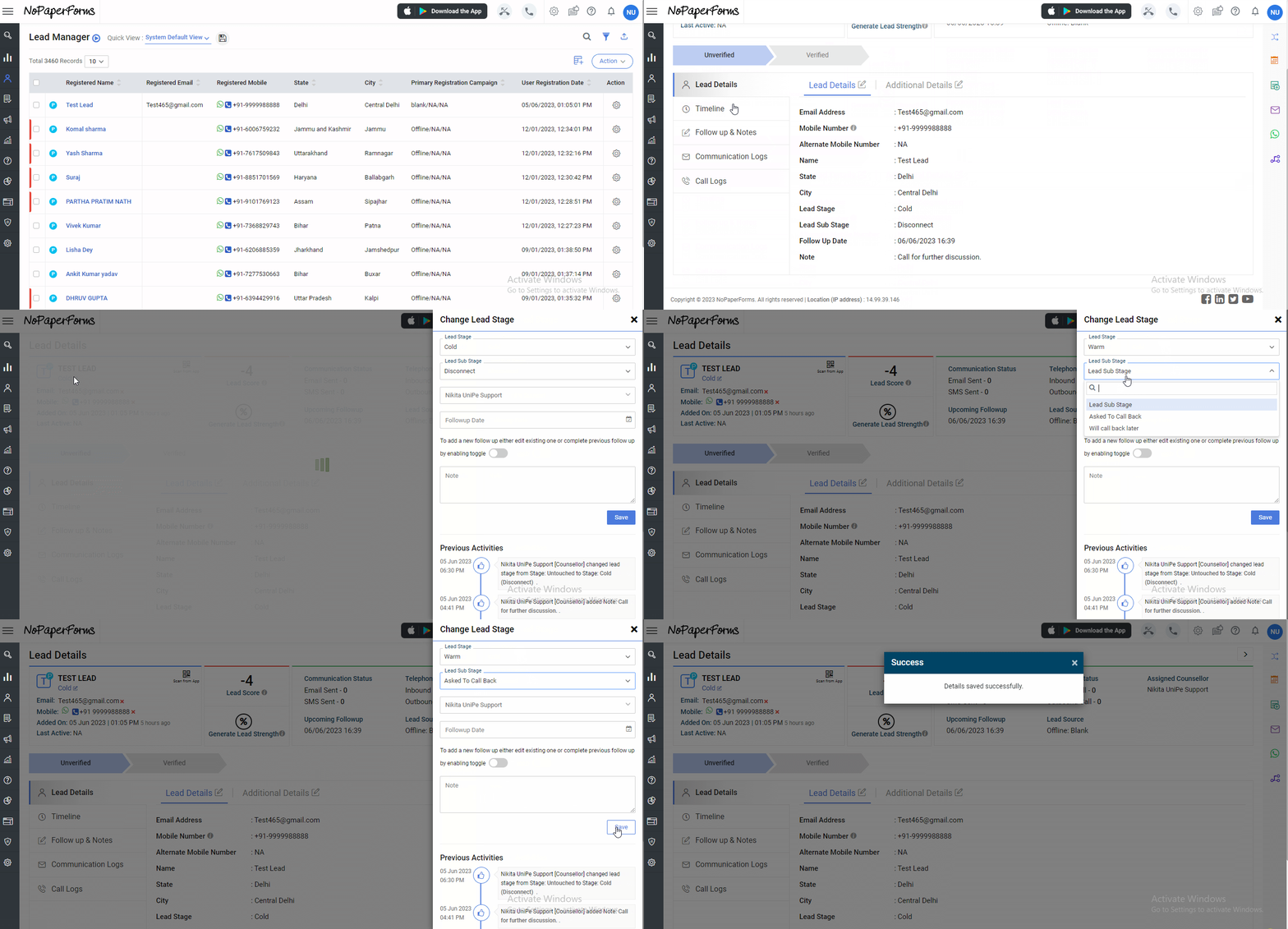
- The ‘Change Lead Stage’ box can also be accessed from One View Lead Profile.
- In the Lead Details summary tab on lead profile, click the Edit icon below the applicant’s name.
- Update the Lead Stage, Lead Owner’s Name, Follow-up Date, and Note (optional).
- Click Save.

Method 3: From the ‘Lead Actions in One View Lead Profile’
- Lead Profile Action List present on the top right corner of the lead profile page allows you to perform certain actions on the lead.
- Click on icon. The ‘Change Lead Stage’ box appears where as mentioned above, you can update the Lead Stage, Lead Owner’s Name, Follow-up Date, and Note (optional).
- Click Save.

Steps to Change the Lead Stage in Bulk
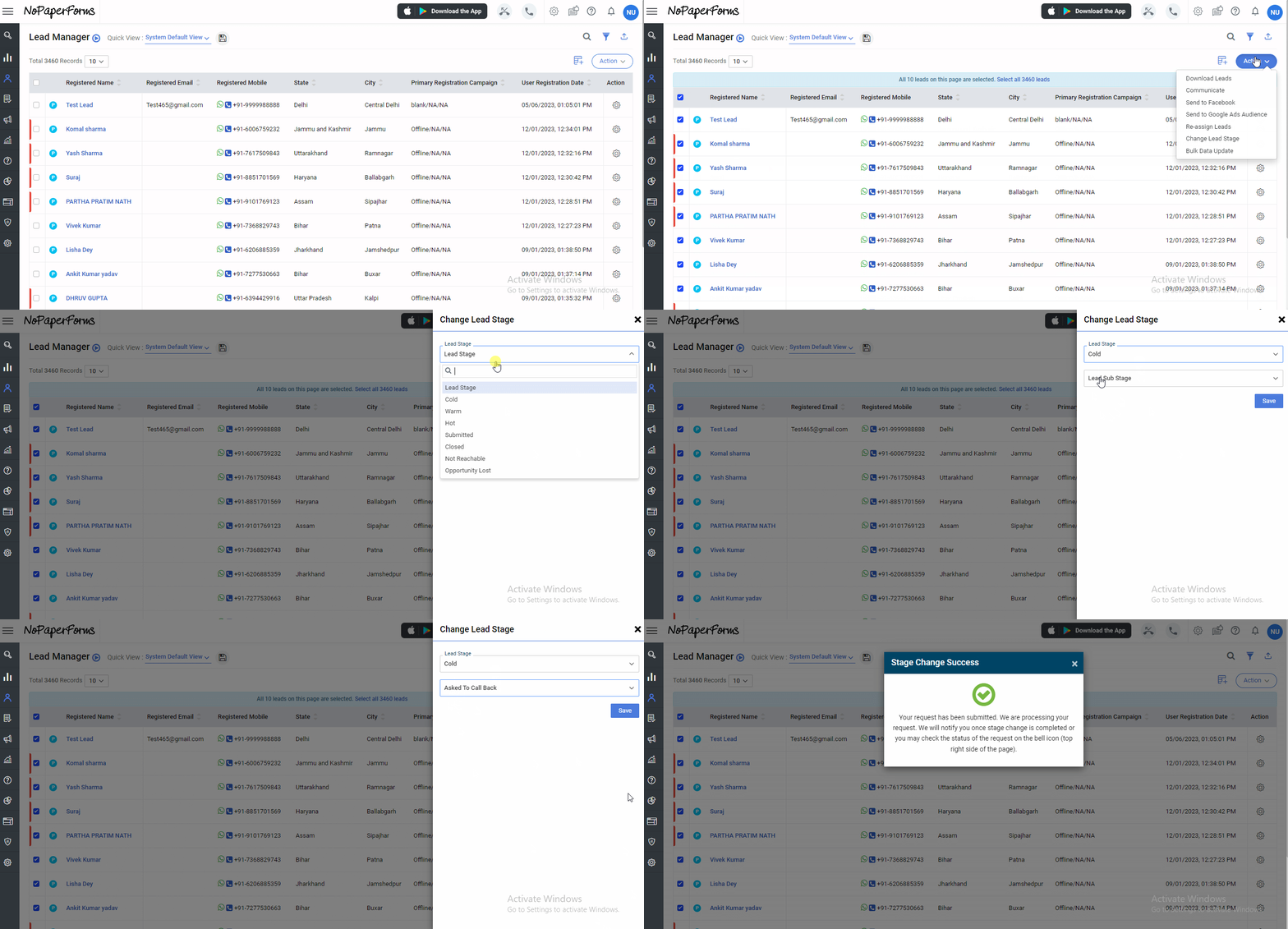
- Navigate to Leads Manager > Manage Leads.
- Choose the leads for which you wish to update the lead stages by ticking the checkboxes next to them.
- Click on the
icon in the right corner of the page and then select ‘Change Lead Stage’ in the Drop Down menu. A ‘Change Lead Stage’ box appears.
- Choose the new Lead Stage and sub stage from the dropdown.
- Click Save. The lead stages and sub stages will be updated.

Note:
1. You can configure the lead stages (like pending, completed, touched, untouched etc.) and sub stages as per your requirements. Click on this article for “Configuring Lead stages and substages.”
2. You can update the lead stage for 'n' number of leads. (For e.g. you can update lead stage to complete for 100 leads by using the bulk lead stage feature)