How to Use and Configure Advanced Tracking Parameters?
Overview
Advanced Tracking Parameters help capture detailed insights about ad clicks by adding specific URL parameters to landing page URLs.
Enhanced Tracking: Collects data on device type, keywords, location, and more.
Customizable Insights: Goes beyond default UTM tracking to capture additional parameters.
Seamless Integration: Configuring the Advanced Tracking Template in Google Ads enables detailed tracking in Meritto.
This ensures better audience insights and optimized ad performance tracking.
Plan & Permissions
- You have Admin access to your Google Ads account.
- Your campaigns are active and allow modifications.
- You have the correct tracking template to configure.
Step-by-Step Guide to Use and Configure Advanced Tracking Parameters
Configure Advanced Tracking Parameters at the Ad Level
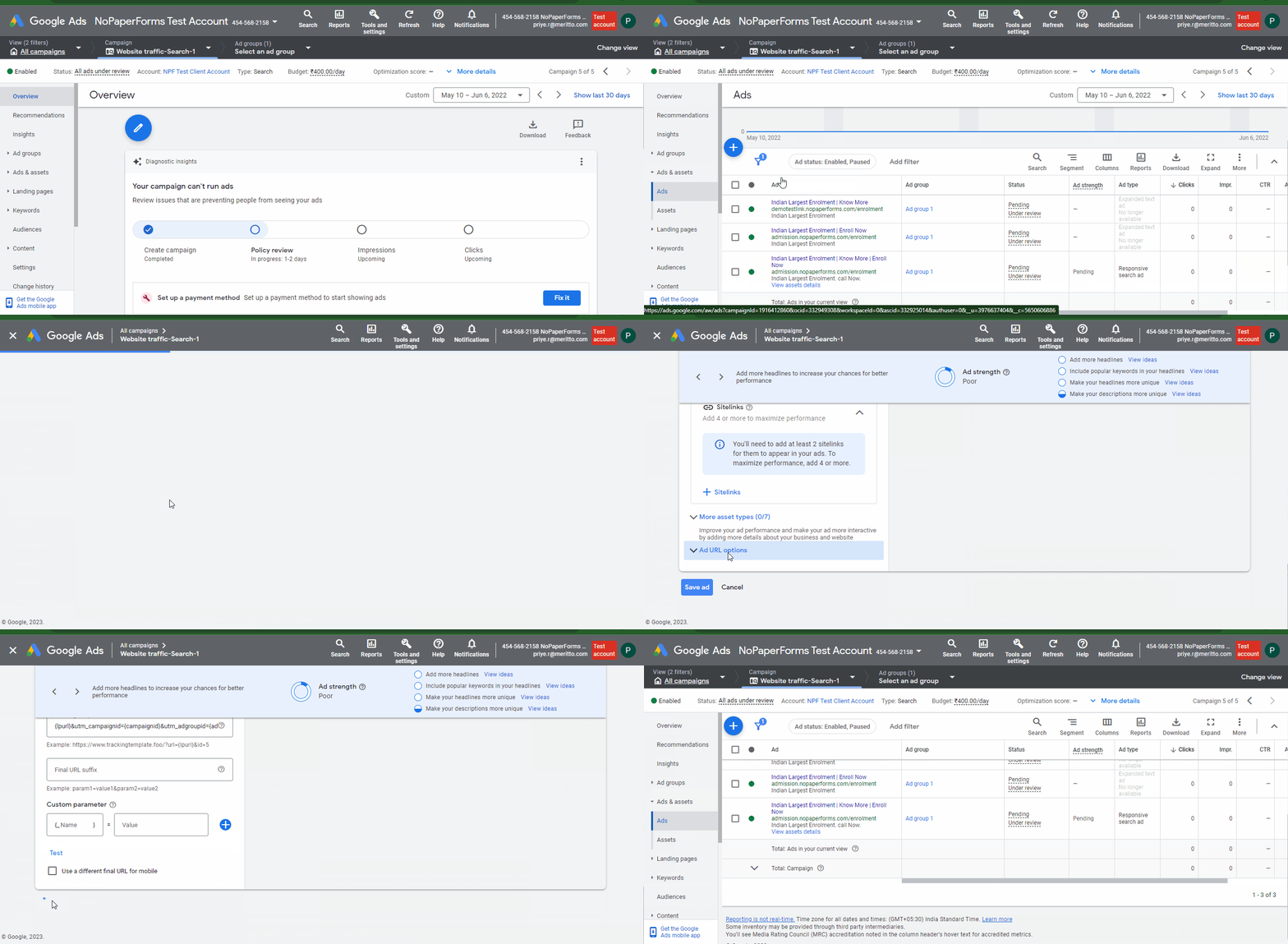
- Log in to your Google Ads Account.
- Navigate to the ‘Ads’ section.
- Click on the Pencil Icon to edit an ad.
- Scroll down and expand the ‘Ad URL options’ section.

{lpurl}&utm_campaignid={campaignid}&utm_adgroupid={adgroupid}&utm_creativeid={creative}&utm_matchtype={matchtype}&utm_device={device}&utm_network={network}&utm_keyword={keyword}&utm_placement={placement}
- Click ‘Test’ to verify the tracking template.
- Click ‘Save ad’ to apply changes.
Configure Advanced Tracking at the Ad Group Level
Click on the ‘Ad Groups’ tab in the left menu.Add the Tracking Template column to your table:
Click the column icon above the statistics table.
Select ‘Modify columns’ → Expand ‘Attributes’ → Select ‘Tracking template’ → Click Apply.
Scroll right to find the Tracking Template column.
Hover over the entry and click the Pencil Icon when it appears.
Paste the tracking template in the field.
Click ‘Test’ to verify.
Click ‘Save’ to apply the changes.
Configure Advanced Tracking at the Campaign Level
Click on ‘Settings’ → Select ‘Campaign Settings’.
Add the Tracking Template column:
Click Modify columns → Expand ‘Attributes’ → Select ‘Tracking template’ → Click Apply.
Scroll right to find the Tracking Template column.
Hover over the entry and click the Pencil Icon.
Paste the tracking template.
Click ‘Test’ to verify.
Click ‘Save’ to apply the changes.
Points to Keep in Mind
- Always test the tracking template before saving to ensure accurate tracking.
- Tracking parameters help Meritto capture deeper insights beyond default UTM parameters.
- You can configure tracking at Ad, Ad Group, or Campaign level, depending on your preference.
- Ensure the tracking template is correctly formatted to avoid errors in data collection.
Conclusion
Configuring Advanced Tracking Parameters enhances your ability to track and analyze Google Ads performance within Meritto. By implementing these parameters at different levels—Ad, Ad Group, and Campaign—you can capture granular insights beyond default UTM tracking. This helps in optimizing ad spend, improving targeting strategies, and making data-driven marketing decisions for better ROI.