How to get the Facebook Business Manager Account Created & Verified ?
Overview
Facebook Business Manager Account (FBMA) is a free tool by Facebook that helps businesses manage multiple Facebook Pages, Ad accounts, and user access from a single panel. It allows you to operate all Facebook assets collaboratively and share access with third-party agencies managing your campaigns.
A verified Facebook Business Manager Account is essential to apply for WhatsApp Business API and chatbot integration. Facebook uses the verification process to authenticate your business identity.
Step-by-Step Guide to Get the Facebook Business Manager Account Created & Verified
1. Create a Facebook Business Manager Account
First of all, please confirm internally if your business already has an existing FBMA account. It will be confirmed by your concerned person managing our social media accounts and your Ad agency.
An existing FBMA account created at least 3 months back is extremely helpful.
Steps to Create a Facebook Business Manager Account:
Visit Facebook Business Manager.
If you already have an account, you will be redirected to the homepage.
Your URL will be such as https://business.facebook.com/business_id=123456789xxxxx
To create a new account, click "Create Account" in the top-right corner.
Fill in your business name, email ID, and your name in the form.
Confirm your email to activate the account.
You will be redirected to the FBMA homepage. Ensure that your email is verified before proceeding.
2. Add Your Facebook Page (Recommended but Not Mandatory)
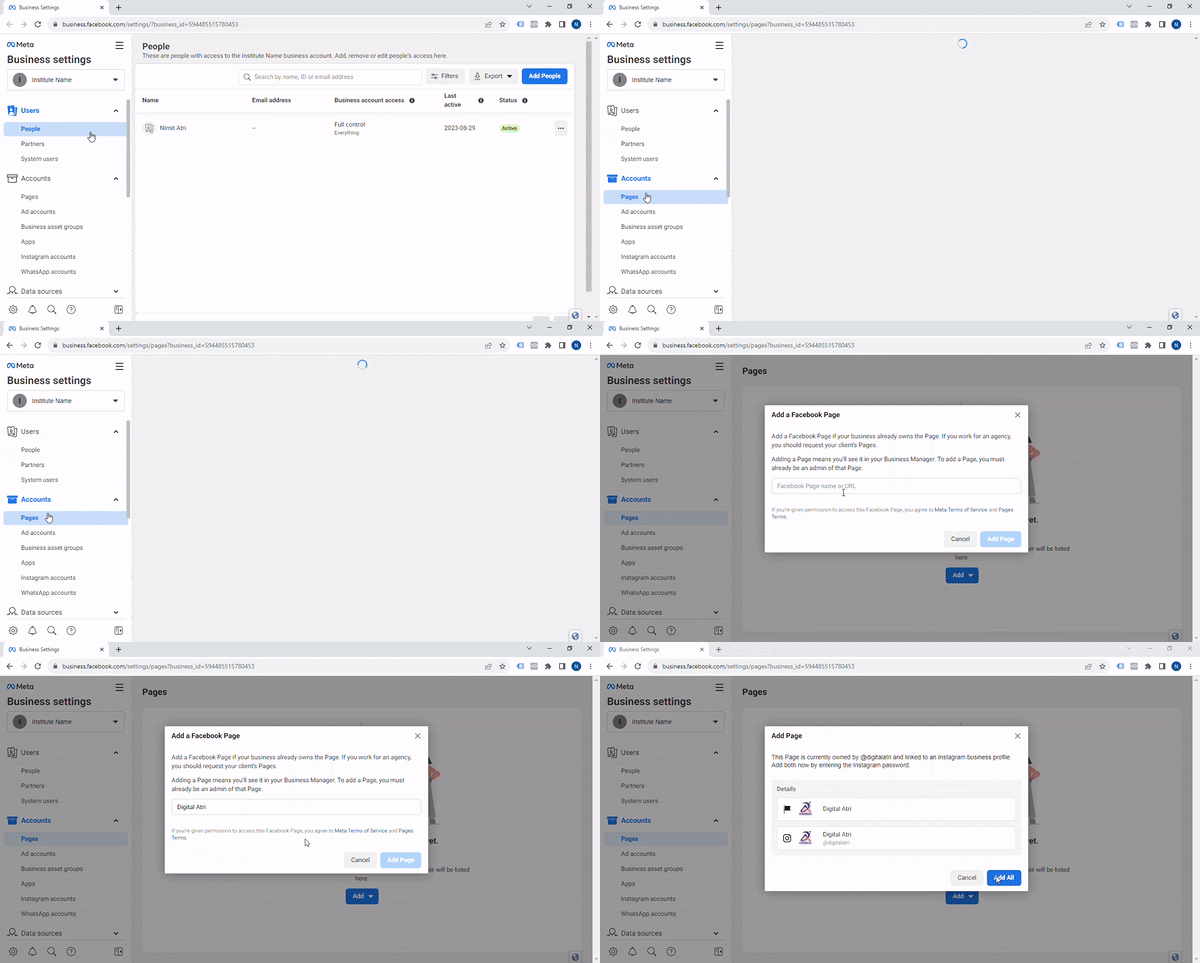
Navigate to Pages in Business Settings.
Add your official Facebook Page.
If you have Admin access, the page will be added immediately. Otherwise, you will need approval from the page owner.
3. Complete Your Business Manager Account Details
Go to Business Settings.
On the left panel, click Business Info.
Add your FBMA Account Name (should match your WhatsApp Display Name).
Upload your business logo.
Add your official Facebook Page as the primary page in the FBMA account.
4. Create an Application to Enable Verification
Log in to Facebook for Developers.
Click "Get Started", then select "Create App".
Choose App Type: Business and click Next.
Enter an App Name and link it to the FBMA account you want to verify.
Click Save.
Navigate to App Settings > Basic:
Add Privacy Policy URL and Terms of Service URL (from your website).
If no Terms of Service URL is available, add your website URL.
Select Category: Education and click Save.
Under App Review, go to Permissions & Features.
Search “Business” and click on Request Advanced Access.
Refresh your FBMA homepage; the "Start Verification" button will now be enabled.
5. Verify Your Facebook Business Manager Account
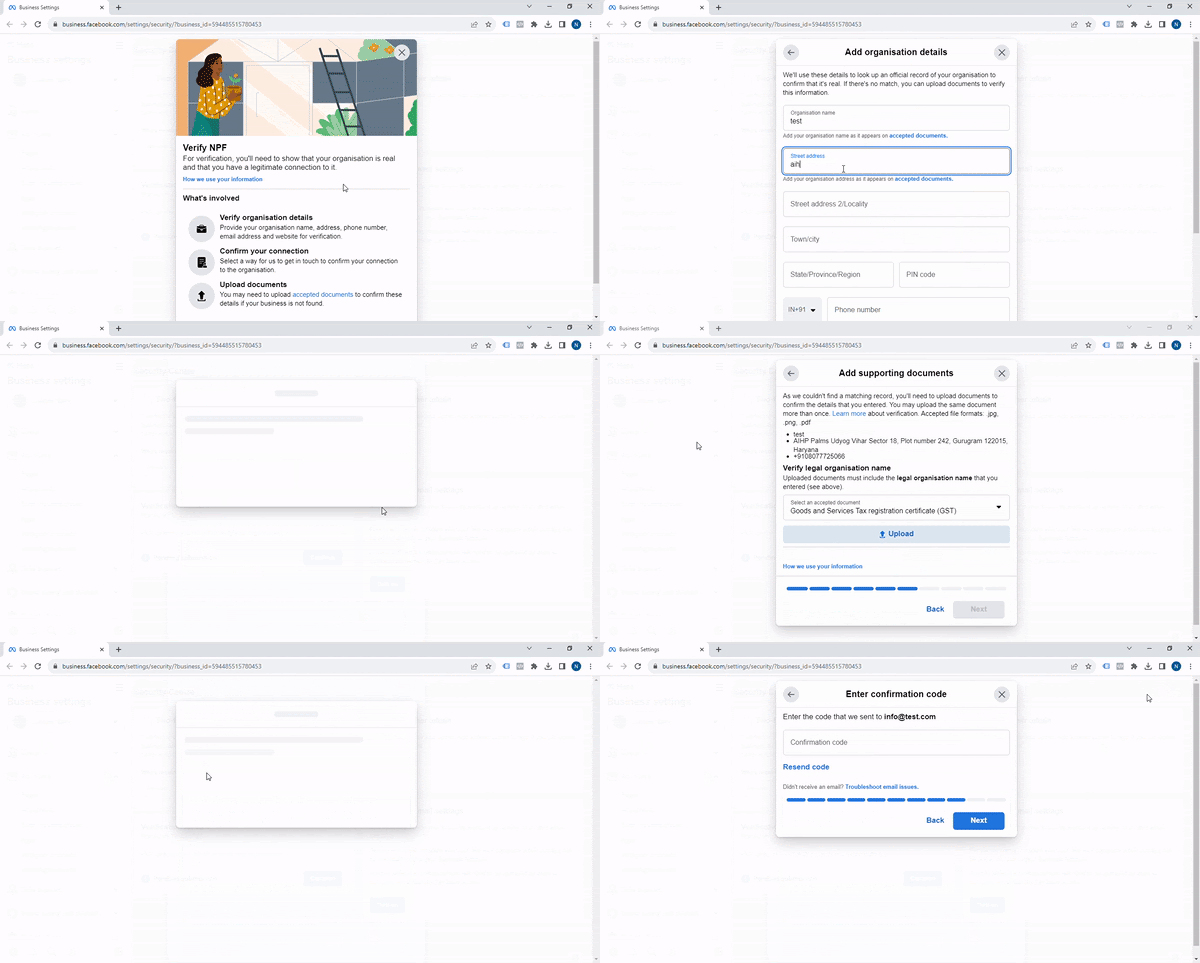
Go to Security Centre in Business Settings.
Click Start Verification.
If the button is not enabled, ensure you have completed Step 4.
Fill in the four sections with your business details:
Business email (should be associated with your domain)
Submit the request and wait for Facebook’s response.
Once verified, your Facebook Business Manager Account is ready for use!
Points to Keep in Mind
The WhatsApp Display Name should match either the FBMA Account Name or the Legal Name in the Security Centre.
If the WhatsApp Display Name differs from the parent company’s legal name, mention the legal name on your website’s footer or About Us page.
If your verification request is rejected, check Meta Business Suite for possible reasons and troubleshooting steps.
The difference between WhatsApp Display Name approval & Official Business Account (OBA):

Conclusion
Creating and verifying a Facebook Business Manager Account (FBMA) is essential for managing your business’s digital assets in a centralized and secure manner. A verified FBMA not only streamlines access control for multiple users and ad accounts but also serves as a prerequisite for critical integrations like the WhatsApp Business API and chatbot deployment. By following the step-by-step guide, you can ensure a smooth verification process, reducing delays in setting up essential marketing and communication tools. Once verified, you can confidently proceed with advanced business solutions and integrations to enhance your digital presence.