Impact of Campaign Grouping on the Publisher Panel
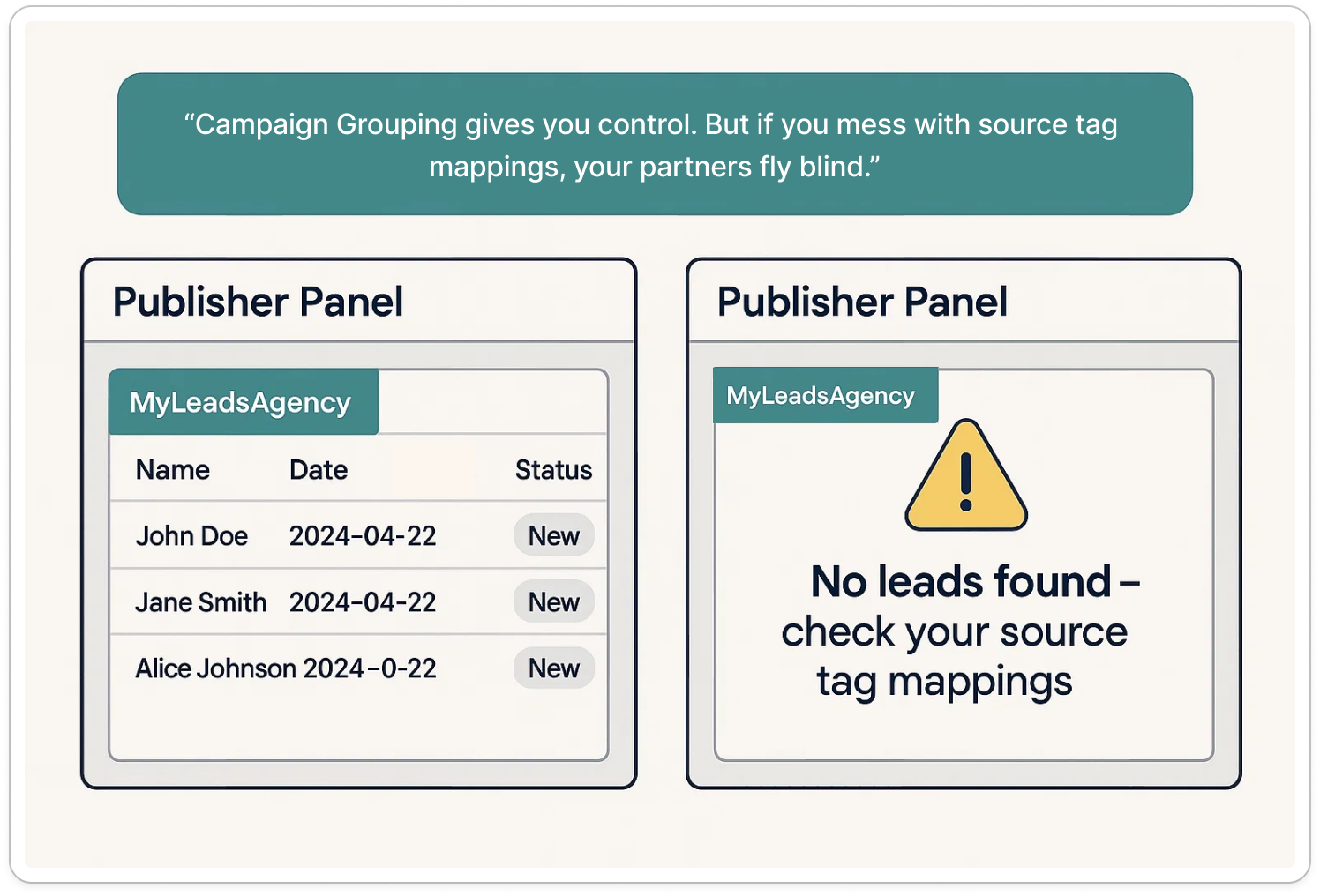
“Campaign Grouping gives you control. But if you mess with source tag mappings, your partners fly blind.”
What Is the Publisher Panel?
The Publisher Panel is the restricted access dashboard designed for your external lead partners, aggregators, or marketing agencies. Through it, they can:
- Log in with their own credentials
- See only the leads assigned to their associated Publisher
- Track status and performance of their campaigns
- Download lead data (as per permissions)
It’s your lead partner’s real-time performance mirror — and Campaign Grouping directly affects what’s visible here.
What Changed With Campaign Grouping?
Previously:
- All publishers were centrally managed by Meritto
- Attribution logic was uniform across institutes
Now with Campaign Grouping:
- Institutes manage their own publisher mappings
- Attribution and publisher setup are institute-specific
- Which means: your mapping accuracy = your partner’s visibility
Why Does This Matter to 3rd Party Publishers?
“If source tags are incorrect or publishers are unmapped, your vendors will not see any leads — even if they generated them.”
What’s at stake:
- Their leads won’t be attributed
- Publisher Panel will appear empty or may have missing leads
- Lead count discrepancies may arise
- Attribution trust might be impacted between you (institute) and your lead partners (publishers)
How Publisher Panel Access Works (Process + Watchouts)?
Step-by-Step: Creating a Publisher User (Institute Admin-side)
This flow has not changed post-Campaign Grouping, but here's what must be done right:
Step 1: Go to Manage Users
- From your admin menu, go to Settings → Manage Users
- This page lists all internal & external users
Step 2: Click on Create → Publisher User
- Top-right corner: Click Create
- Click on dropdown beside "Institute User"
- Select Publisher User
Key Watchout: Do NOT choose Institute User by mistake. Publisher Panel access only comes with the Publisher User role.
Step 3: Fill Publisher Details
- Add Email ID (used as login)
- Add Publisher Name → This is the exact name as in Campaign Grouping
- Caution: This is an exact match field – case-sensitive, space-sensitive, spelling-sensitive.
- For example, ABC ≠ A B C ≠ A BC. If mismatched → Partner sees 0 leads.
Step 4: Set Permissions
Choose one of the following:
| Permission Level | Access |
| Basic | View lead list only, limited fields |
| Advanced | Download rights, full field access, lead journey view |
How Syncing Publishers Impacts Their Visibility?
Whenever you edit a Publisher and add/remove source tags, there will retroactively change attribution across:
- Dashboards
- Internal filters
- Publisher Panel
Dangerous Move: Removing or Replacing Source Tags
- Scenario
- Partner A sends leads via utm_source=shiksha
- You remove shiksha from the Publisher’s tag list…
- Impact
- A’s attribution will break
- The leads sent by them won’t match what they see on Publisher Panel
- Their dashboard may go blank (if you removed the source tag that was shared across
- You’ll get a “Leads not showing” escalation
Pro Tip: Don’t edit tags casually. If unsure, create a new publisher instead.
Best Practices for Smooth Visibility for your Publishers (3rd Party Lead Partners)
| Do This... | So That... |
| Use the exact publisher name while creating the Publisher User | They see only their leads |
| Maintain source tags used in APIs, landing pages | Attribution keeps working |
| Choose "Publisher" as the type when creating publishers | Publisher Panel access can be given |
| Make Edits and sync only when sure | Attribution shifts are live |
| Communicate big updates to partners | Prevent confusion or mistrust |
Summary: Publisher Panel Do’s & Don’ts
You clean your leads. Clean your publisher setup, too. This will ensure smoother partnerships with your publishers.
| Do | Don’t |
| Create Publisher Users with matching names | Misspell names during setup |
| Use consistent source tags in Campaign Grouping | Remove tags blindly |
| Assign correct permission levels | Leave access defaults unassigned |