Publisher Panel Overview: A Comprehensive Guide for Publishers
Overview
Imagine you're running a publishing agency, a third-party lead generation partner for educational institutes. Now, wouldn’t you want to know if the leads you're sending are actually converting?
Well, welcome to the Publisher Panel by Meritto. Think of it as a rearview mirror, but only if the institute lets you install it.
The Publisher Panel by Meritto provides third-party lead partners (publishers/referrers) with visibility into the leads they generate for educational institutes. This guide explains how to access the panel, navigate it, apply filters, and interpret data.
One Login, One Portal, Unless Specified
If you're associated with multiple educational institutes using Meritto, you can usually access all of them with a single login, provided the institutes share the same Publisher Panel URL.
If an institute has provided a unique URL, that login is specific to that portal.
The same applies if you're managing multiple publisher identities.
Rule of thumb: One portal per URL, one login per user.
Once logged in, you’ll see two dropdowns:
- Institute → The name of the educational institute you're associated with
- Source → Your publisher identity (referrer/source name)
If you're connected to only one institute or source, the dropdown will show just one value.
Troubleshooting Dropdown Visibility
If something looks off when you log in:
What You See | What It Likely Means |
| All dropdowns are empty | You're using the wrong Publisher Panel URL. Use the correct one shared by the institute. |
| Institute is visible, but Source is missing | You’re not mapped to the correct Publisher Source. The institute needs to update it in your user configuration. |
| Expected institute is missing | Either you’re on the wrong URL, or the institute hasn’t granted you access yet. |
Always confirm the URL with your partnered institute, and ensure they’ve set up your user with the right permissions.
Using Filters
After selecting the institute and source, use Advanced Filters to refine your view by:
- Date range
- Application status
- Lead source/origin
- Device type
…and more
Click “Search” to load the filtered data.
Metrics and Lead Details
You’ll now see:
- A summary of key metrics
- A detailed lead table view
Depending on permissions set by the institute, some lead details (email, phone) may appear masked.
How Date Filters Affect Metrics
Date filters influence specific metrics. Here’s how:
Date Filter | Metrics Affected |
| User Registration Date | Lead counts (Primary/Secondary/Tertiary), Verification status, Lead list |
| Payment Approval Date | Count of Paid Applications |
| Application Submission Date | Count of Submitted Applications |
| Enrollment Date | Count of Enrollments |
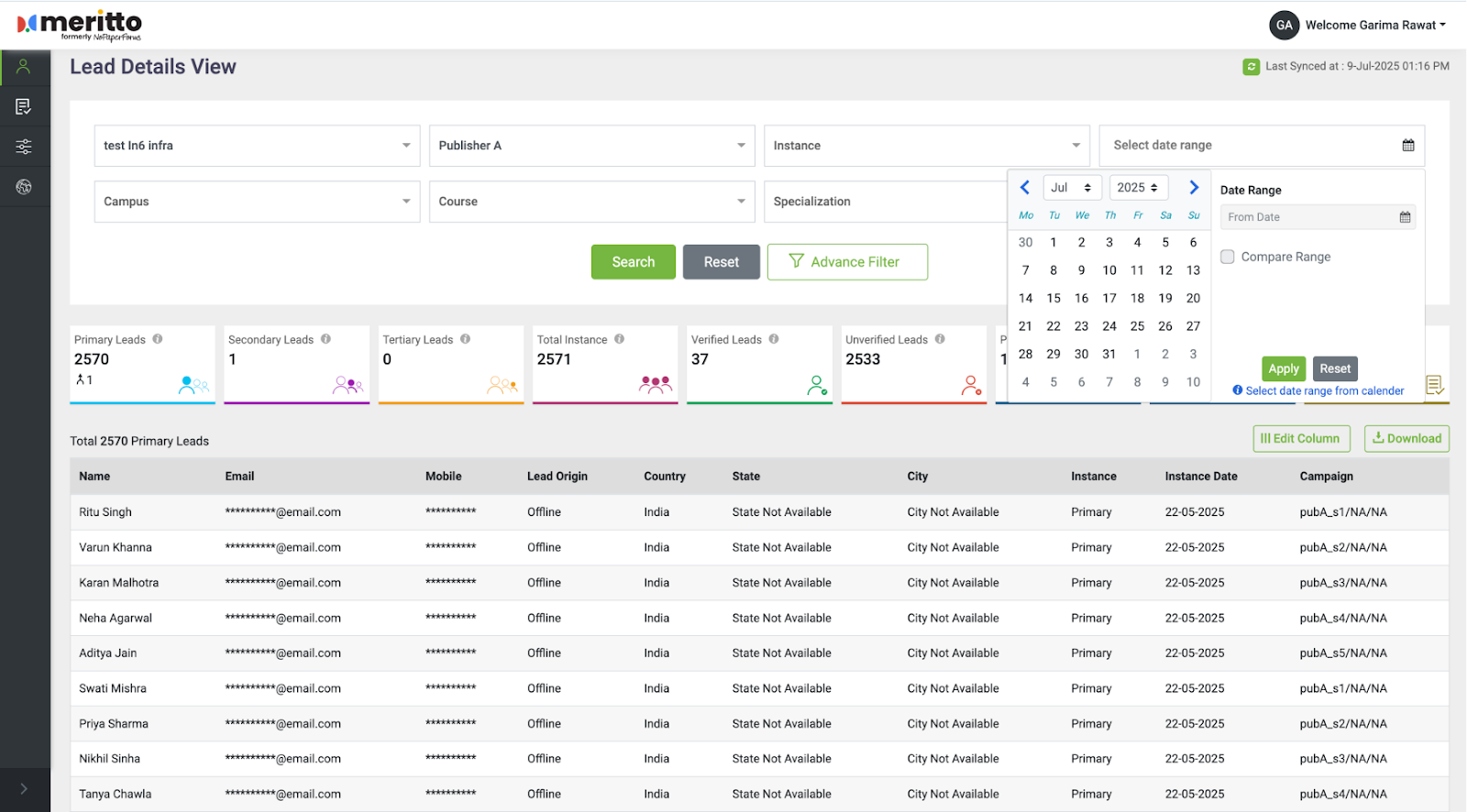
Customize View & Download Data
You can:
- Add or remove columns from the lead view
- Export the filtered data for further analysis
Additional Insights
You can also analyze:
Application-Wise Analysis
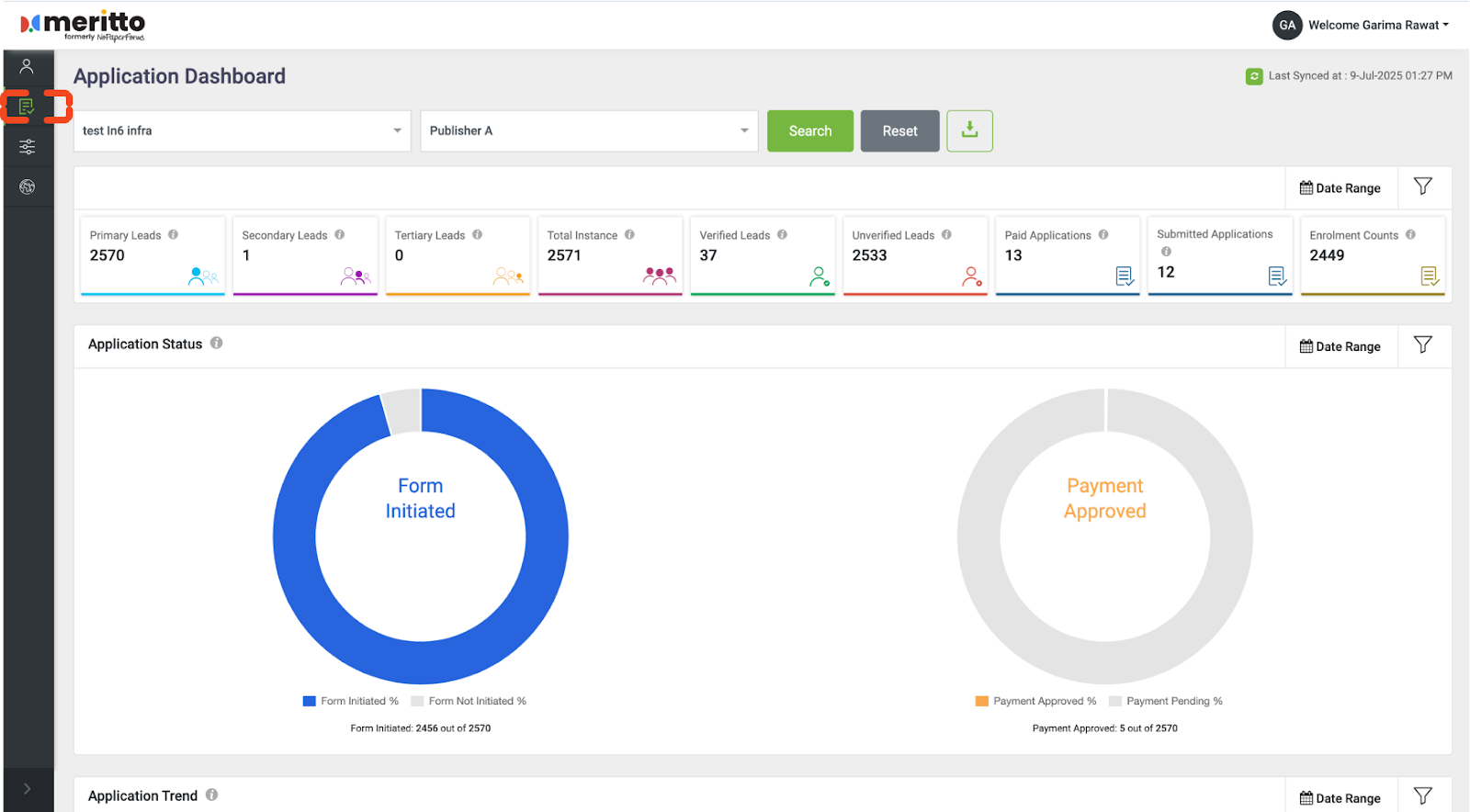
Campaign-Wise Performance
Geographical Analysis
These views provide better visibility into overall lead performance.
Common Issues to Check
If you're unable to see expected data, it may be due to:
- Incorrect publisher or source mapping
- Lead source not linked via Campaign Grouping
- Access not granted by the institute
- Using the wrong Publisher Panel URL
All visibility is controlled by the educational institute.
Troubleshooting & Support
If something seems off:
- Contact the partnered educational institute first. They configure your access and are best positioned to help.
- If they escalate to Meritto Support, they must include:
- A screen recording of the issue
- The Publisher Panel URL being accessed
- The institute name and source name
- Approximate date and time of the issue
Meritto support teams do not have direct access to publisher dashboards, so accurate inputs are essential for resolution.
Conclusion
The Publisher Panel offers powerful insights, but visibility depends on how it’s configured by the educational institute. Ensure the setup is accurate, and you'll get the clarity you need to drive your lead outcomes.