How to Assign/Unassign Opportunity Owner?
Overview
Opportunity Owner Assignment helps efficiently distribute opportunities among team members, improving accountability and conversion rates.
Structured Assignment: Assigns opportunities to the right team members for better follow-ups.
Focused Sales Efforts: Enables the sales team to work on designated opportunities, enhancing productivity.
Improved Team Alignment: Ensures a streamlined workflow by clearly defining ownership within the team.
This optimizes the sales and nurturing process, leading to better opportunity management and higher conversions.
Plan & Permissions
Permissions: Users must have the Assign Opportunity permission to assign opportunities manually (Single/Bulk).
Step-by-Step Guide to Assign Opportunity Owner
Assigning a Single Opportunity Owner
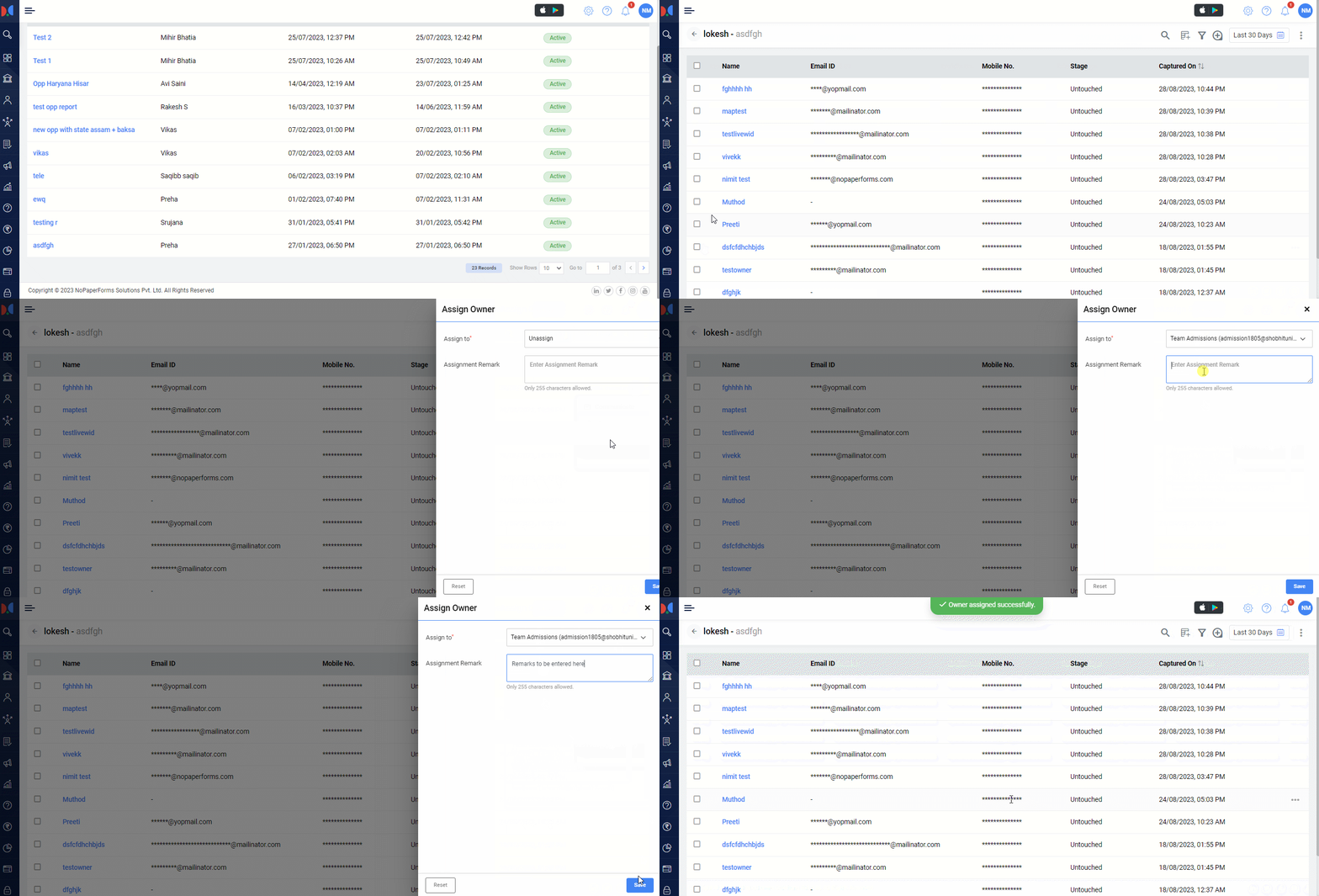
Navigate to the Opportunity List:
Go to the Opportunity Module and open the opportunity list.
Click on the Assign Owner Action:
On the right-hand side, next to the opportunity’s details, click on the Action button and select Assign Owner from the dropdown menu.
Select the Owner:
A Assign Owner form is opened.
Click on Assign to, and a dropdown will open.
The current owner (if assigned) will be displayed (default: Unassigned).
Choose an owner from the list of active users.
Add Remarks (Optional):
Enter any assignment remarks if required.
Save the Changes:
Click Save to finalize the owner assignment.


Assigning Multiple Opportunity Owners (Bulk Assignment)
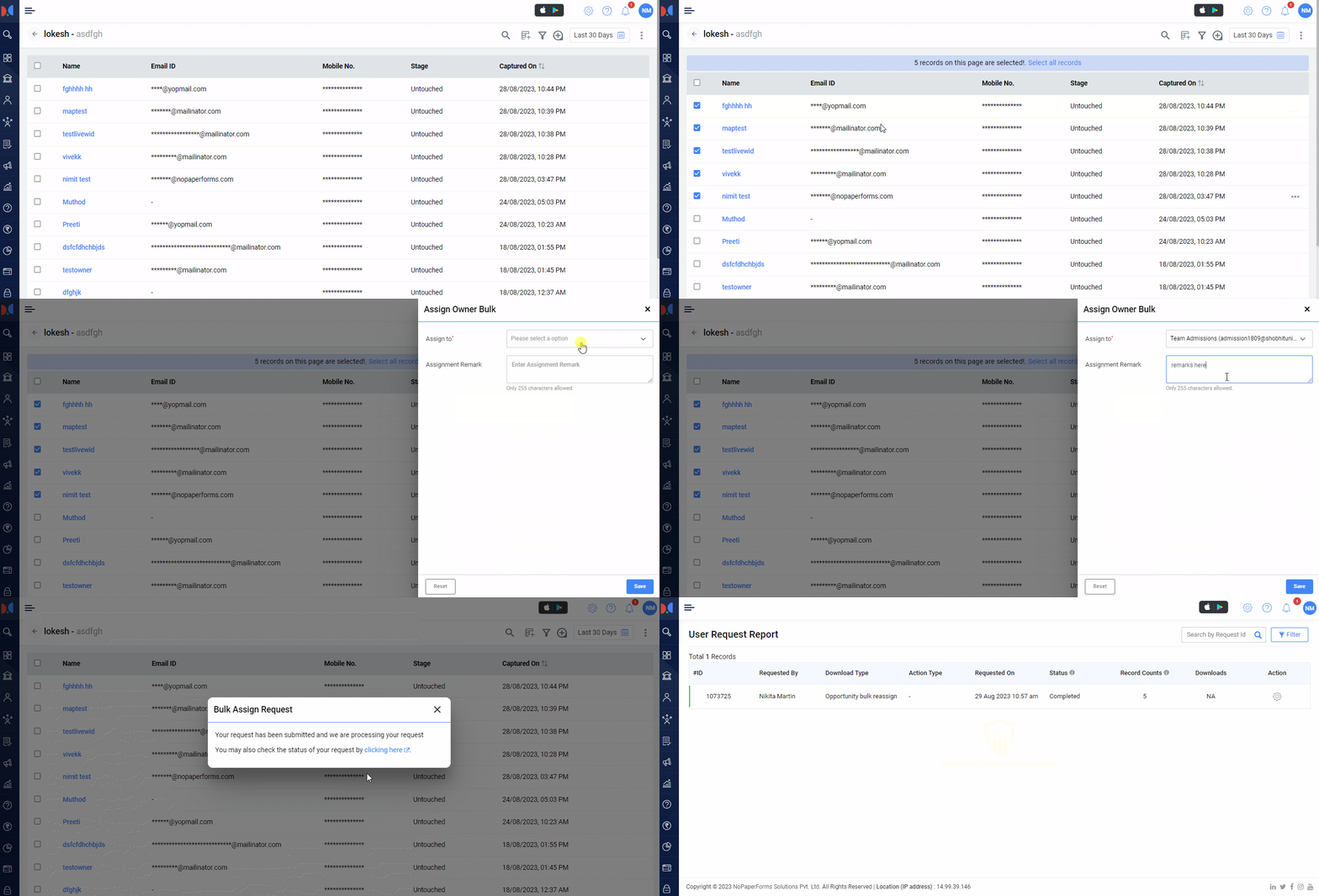
Navigate to the Opportunity List:
Go to the Opportunity Module and open the opportunity list.
Select Multiple Opportunities:
Select multiple opportunities you want to assign owners by clicking on the checkbox present to the left of the opportunities.
Click on Bulk Actions:
Click on the Action Button at the top right and select the Assign Owner option.
Select the Owner:
A Assign Owner form is opened.
Click on Assign to, and a dropdown will open.
The current owner (if assigned) will be displayed (default: Unassigned).
Choose an owner from the list of active users.
Add Remarks (Optional):
Enter any assignment remarks if required.
Save the Changes:
Click Save to finalize the owner assignment.
You can also unassign/re-assign the opportunities by using the same action button and select the Assign Owner option. Under the 'Assign to' field, you can select the option 'unassign' or 'reassign' to any other counselor as per your requirements.
The same works for the single unassignment and reassignment.

Filtering Opportunities by Owner
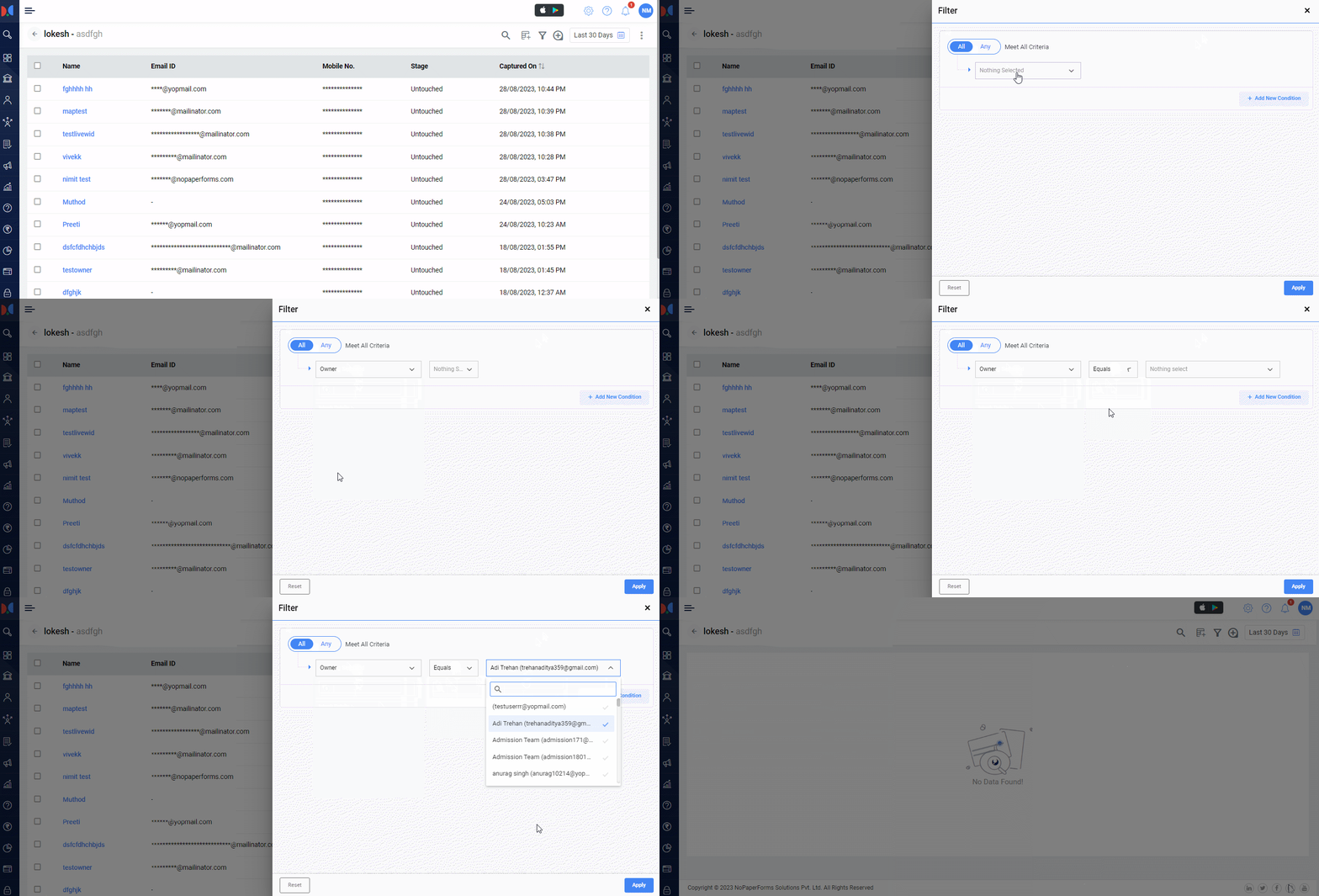
You can click on the filter icon at the top-right, available on the records page.
You can select the owner and put condition on the basis of your requirement.
Click on the Apply button and system will show you the results accordingly.


Points to Keep in Mind
Reassigning an opportunity from User 1 to User 2:
All overdue follow-ups created by User 1 will be marked as completed.
Any upcoming follow-ups created by User 1 will be reassigned to User 2.
Unassigning an opportunity (from a user to unassigned):
The system marks all overdue and upcoming follow-ups as completed.
Conclusion
Opportunity Owner Assignment helps align teams and streamline the sales process by ensuring opportunities are distributed effectively. With options for both single and bulk assignment, users can efficiently manage and allocate opportunities to the right team members.
Better Team Coordination: Ensures clear ownership, reducing confusion and overlap.
Efficient Distribution: Allows quick assignment of opportunities, whether individually or in bulk.
Focused Sales Approach: Helps team members prioritize and manage their assigned opportunities effectively.
This process enhances productivity, improves accountability, and ensures a structured approach to sales and nurturing.