Calendar Pro - Events
Overview
Calendar Pro – Events replaces the traditional Follow-up feature in Meritto, offering a more versatile and dynamic way to manage and schedule events. It empowers you to:
Create customized event forms for different activities.
Schedule time-bound events for Leads, Applications, and Opportunities while considering time zone differences.
Receive email notifications when an event is created or assigned to you.
Manage and track all events efficiently to enhance prioritization and organization.
Whether it’s following up with leads, sending document submission reminders, or collecting class feedback, Calendar Pro provides all the tools you need to manage your events effectively.
Plan & Permissions
Access to Meritto users with event configuration and management access.
Required Permissions:
Create Event Forms – To configure and manage event forms.
Add Events to Lead/Application/Opportunity – To add events against respective modules.
Manage Event Fields – To configure and manage additional fields in event forms.

Note:
Existing Follow-up functionality in the Meritto is replaced with Calendar Pro – Events.
Follow-up will now be a default event form available for all users.
Core Functionalities
Event Form: Create your event form with different use cases.
Event Fields: Configure additional fields required as per your business requirement.
Setup Conflict: This will allow you to maintain their time and not set up different events at the same time.
Ease of Timezone: Easily set an event with the lead without the hassle of calculating the lead’s timezone
Email Notification: Receive a notification when an event is created with you as an owner or an organizer.
Access Control: You can configure the event form’s access at the user level and module level.
Open Completed Event: You can now Open an event that is completed if required.
Cancel Event: You can now cancel an event that is not taking place anymore.
Special Business Use Cases
Enrollment Follow-up
Use Case: Schedule a follow-up with prospective students to guide them through the enrollment process.
Benefit: Ensures that applicants complete their application on time.

Document Submission Reminders
Use Case: Set up events to remind applicants to submit required documents before deadlines.
Benefit: Reduces delays and incomplete applications.
Fee Payment Reminders
Use Case: Schedule events to remind students of upcoming fee payment deadlines.
Benefit: Ensures timely payments and reduces follow-up efforts.
Class Feedback Collection
Use Case: Schedule calls to gather feedback from students regarding classes they attended.
Benefit: Helps in assessing course effectiveness and improving student experience.
How to Configure Calendar Pro – Events?
1. Enable Calendar Pro from the Meritto
Navigate to the Extensions section in the Meritto’s Navigation Bar.
Locate Calendar Pro from the App Store.
Click to Enable Calendar Pro.
Calendar Pro is now ready to use!
You can also check: Deleting the Events - Calendar Pro
2. Create an Event Form
Access Calendar Pro from theMeritto’s main menu.
Click on Event Config to navigate to the event configuration page.
Click on New Event on the top-right corner to initiate the 2-step event configuration process.
3. Configure Event Form Details
Click Save & Next to proceed.
4. Add Fields to the Event Form
Review system-created fields.
Add new custom fields if required.
Edit the description and priority of system-generated fields.
As per your case, you can always create new fields.
Any fields created in an event form can be used in any other event-form to reduce redundancy and repetitive efforts while creating the event.
Click Publish to save the event form.
The event form is now ready to be used. You can enable the event from the listing page.
5. Manage Event Fields
Navigate to the Fields Tab in the Event Config section.
View and manage all fields associated with different event forms.
Edit or configure properties from the same interface.

6. Add Events from the Module
After creating the event form, assign the appropriate permissions to users.
Users with permission can now see the Add Event option under:
Lead
Application
Opportunity
Click Add Event to open a pop-up form.
Fill in the necessary details and save the event.
The event is now successfully added and can be accessed under Calendar Pro.

How to View and Manage Events?
1. Accessing Events
Open Calendar Pro from the Meritto’s main menu.
Navigate to the Events Listing Page to view all assigned events.
Apply filters to refine the view and download event details if needed.

2. Editing and Canceling Events
Click on the action menu of any event to Edit Event or Cancel Event if it’s no longer needed.
Completed Events can be reopened and modified if required.

3. How to View the Events/Follow-ups based on status?
To view your follow-ups based on the status:
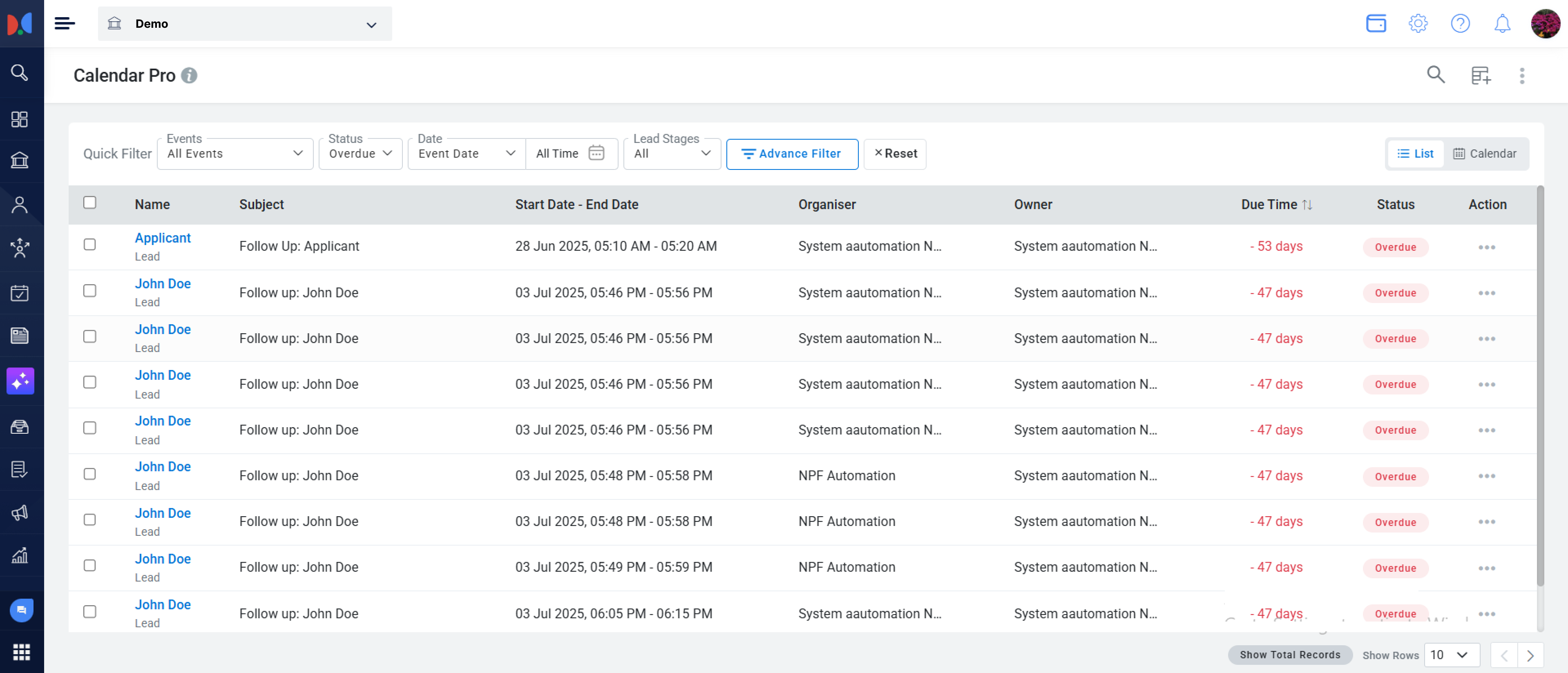
- Navigate to Calendar Pro → Events Page.
- Use the Status filter to view follow-ups by category – Completed, Upcoming, Overdue, Cancelled, or Ongoing.
- Any follow-up status will be highlighted for quick visibility.
- Data displayed will depend on your access level (Individual, Team, Team & Hierarchy, All Data).
How is Follow-up Now Part of Calendar Pro – Events?
Follow-up has been integrated as a default event form within Calendar Pro.
You can now filter events on Lead Manager, Application Manager, and Opportunity instead of using Follow-up filters.
Events & Notes have replaced the Profile section for easier navigation.
All Follow-ups can be accessed through Calendar Pro > Events instead of the user dashboard.
Conclusion
Calendar Pro – Events enhances your event management capabilities by offering a structured way to schedule, track, and manage time-bound events. It replaces the old Follow-up feature and brings more flexibility, improved access control, and streamlined communication.
By enabling Calendar Pro, you can ensure timely interactions with leads, better document management, and improved follow-ups for business-critical processes.
With Calendar Pro – Events, managing and prioritizing tasks has never been easier!