Schedule Video Meetings - Microsoft Teams
Overview
This article will guide you through the process of integrating Microsoft Teams with Meritto to schedule and manage video meetings for interviews and evaluations. By following these steps, you can:
Configure Microsoft Teams accounts and users.
Set up Microsoft Teams meetings within the Meritto portal.
Allow candidates and evaluators to join Microsoft Teams directly from Meritto.
Plan & Permissions
Prerequisites:
A Microsoft 365 for Business Admin Account.
Access to the Virtual Post Application module on the Meritto portal.
Step-by-Step Guide to Schedule Video Meetings - Microsoft Teams
Enable Microsoft Teams in Meritto
Navigate to Post Application in the menu and click on Virtual Post Application from the submenu. Alternatively, search for "Virtual Post Application" using the menu search and click on it.
Select the Form Name for which you want to enable Microsoft Teams meetings and click Let’s Get Started.
Drag the Schedule Video Meeting tab from the Post Application Stages list and drop it into the Design Your Post Application Process workflow window. Click Next Step.
Enable the toggle switch in front of Microsoft Teams and confirm by clicking Yes in the pop-up.


Click on the Microsoft Teams logo, input a meaningful Alias Name (e.g., "MBA HR Account") for easy identification, and click Connect.
Sign in with your Microsoft 365 for Business Admin Account and click Accept on the permissions page.

Click on the downward arrow bar to expand the mapping section.

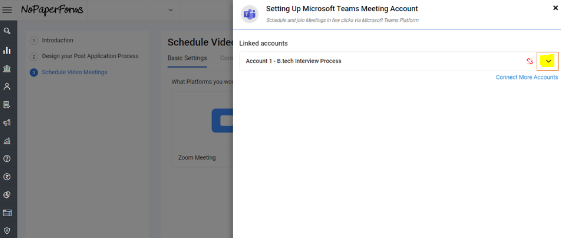
Map your Evaluators (who are active in the Meritto portal) to the corresponding Microsoft Teams users configured in the Microsoft Admin Account.

Click the + icon to map more users and - if you wish to remove any of the mapped accounts.
Click Save to complete the integration.

Schedule Video Meetings
Microsoft Teams meetings can be scheduled in two ways:
Execution 1: Manual Panel Assignment
Select the list of candidates who need evaluation using the Application Manager.
Click on Manual Assignment of the Panel.
Assign the scorecard, evaluator, and tentative date & time for the evaluation.
Enable the Scheduled Video Meetings option by selecting Yes.
Select Microsoft Teams as the video meeting platform.
Set the tentative duration of the interview.

On successful panel assignment:
Candidates will see the Join Meeting button on their dashboard at the scheduled date and time.
Execution 2: Upload CSV
Navigate to Post Application > Virtual Post Application.
Select the Form Name and click Let’s Get Started.
Drag the Panel Assignment tab from the Post Application Stages list and drop it into the workflow window. Click Next Step.
Select the Scorecard from the dropdown for scheduling video meetings.

Select the Evaluator (if only one evaluator is assigned). If multiple evaluators need assignment, do not select any evaluator from the dropdown.
Upload the CSV file (formatted as per the sample file downloadable from the portal) after selecting Microsoft Teams from the dropdown and clicking Upload Data.
On the Label Mapping page, map the uploaded fields to the relevant Meritto Labels and click Start Import.

Once imported:
Evaluators will be assigned to candidates.
The Microsoft Teams meeting link will be generated and visible in Manage Scorecard.
Candidates will see the Join Meeting button on their dashboard at the scheduled date and time.
Points to Keep in Mind
Ensure you have a valid Microsoft Teams account before integration.
Use meaningful Alias Names to easily identify different Microsoft Teams accounts.
Candidates and evaluators must have access to their respective accounts to join meetings seamlessly.
If issues occur with scheduling or joining meetings, verify Microsoft Teams permissions and Meritto access settings.
Conclusion
By integrating Microsoft Teams with Meritto, you streamline the scheduling and management of video interviews and evaluations. This seamless setup ensures that candidates and evaluators can easily access and join meetings directly from the Meritto portal, enhancing efficiency and reducing manual effort. With clear steps for both manual and bulk scheduling, this process improves collaboration, simplifies panel assignments, and ensures a smooth interview experience for all participants.