How to Configure Registration Attempts?

How to Configure Registration Attempts?

Overview

The registration attempt feature in our CRM tracks how many times a lead's information is registered or updated across various origins, such as Add Quick Lead, landing pages, or widgets etc. Previously, the system used fixed logic, which sometimes caused confusion as registration attempts were only tracked during specific actions using certain lead inflows.

We are now introducing a flexible system that allows you to capture registration attempts based on your needs. This update ensures all lead inflows are accurately tracked and managed according to your business processes. Users can customize tracking behaviors for different lead inflows, aligning the system with your lead nurturing process.

With this flexibility, you can customize the registration attempt settings to better fit your workflows, ensuring the system supports your unique business needs.

Benefits

Lead Prioritization:
Registration attempts play a crucial role in prioritizing leads by providing insights into how engaged a potential lead is with your system. When a lead has higher registration attempt count, it often indicates a higher level of interest or intent, allowing your team to prioritize these leads for follow-up. By tracking and analyzing these attempts, you can identify leads that are more likely to convert, ensuring that your sales efforts are focused on the most promising leads. 

Customizable Tracking:
With the ability to configure registration attempts based on origin and action, you can customize the tracking to match your unique business processes. This flexibility ensures that the CRM aligns with how you manage leads, providing more relevant data and insights.

Improved Lead Tracking:
Configuring registration attempts allows you to capture every interaction a lead has with your system, whether it's a add quick lead, update via an API, or updating via Widget. This ensures that no interaction goes unnoticed, giving you a complete picture of lead behavior.

How to Configure Registration Attempts?

  1. Access the Registration Attempt Configuration:
    1. Navigate to the Settings menu in your CRM.
    2. Select Registration Attempts configuration under the Lead Flow section.

  2. Set the attempt type for each Lead Inflow:
    For each origin, decide when a registration attempt should be recorded:
    1. Lead Create Only: Registration Attempt count increases only when a lead is created using this origin.
    2. Lead Create or Update: Registration Attempt count increases both when a lead is created or updated, even if no significant changes are made.
    3. Never: Registration Attempt never increases when a lead is created.

      This can be configured based on your business requirements.

  3. Save and Implement:
    1. Once you’ve configured the settings to your satisfaction, click Save to implement the changes.
    2. The registration attempts will now be captured as per your configuration.

  4. Monitor and Adjust:
    1. Make adjustments as necessary to refine your lead tracking and ensure it supports your evolving business needs.
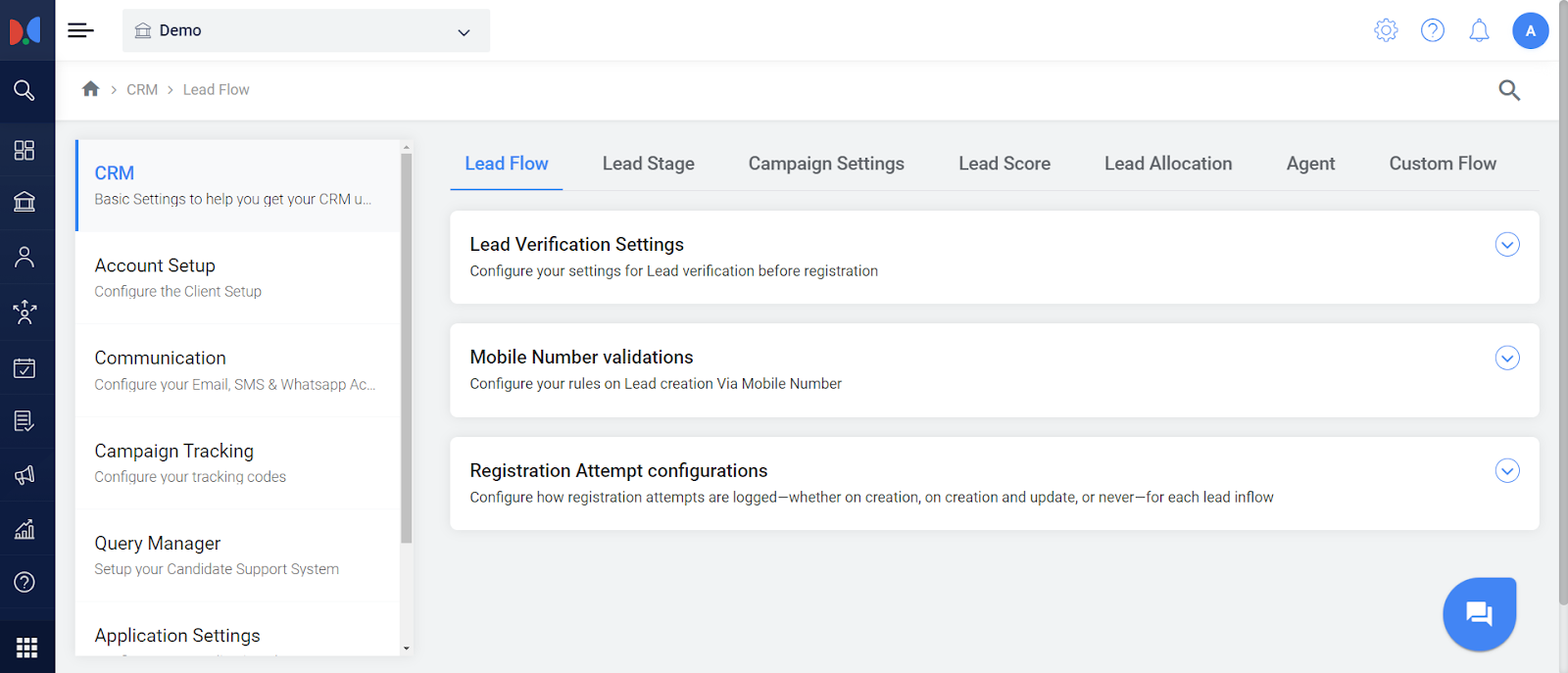
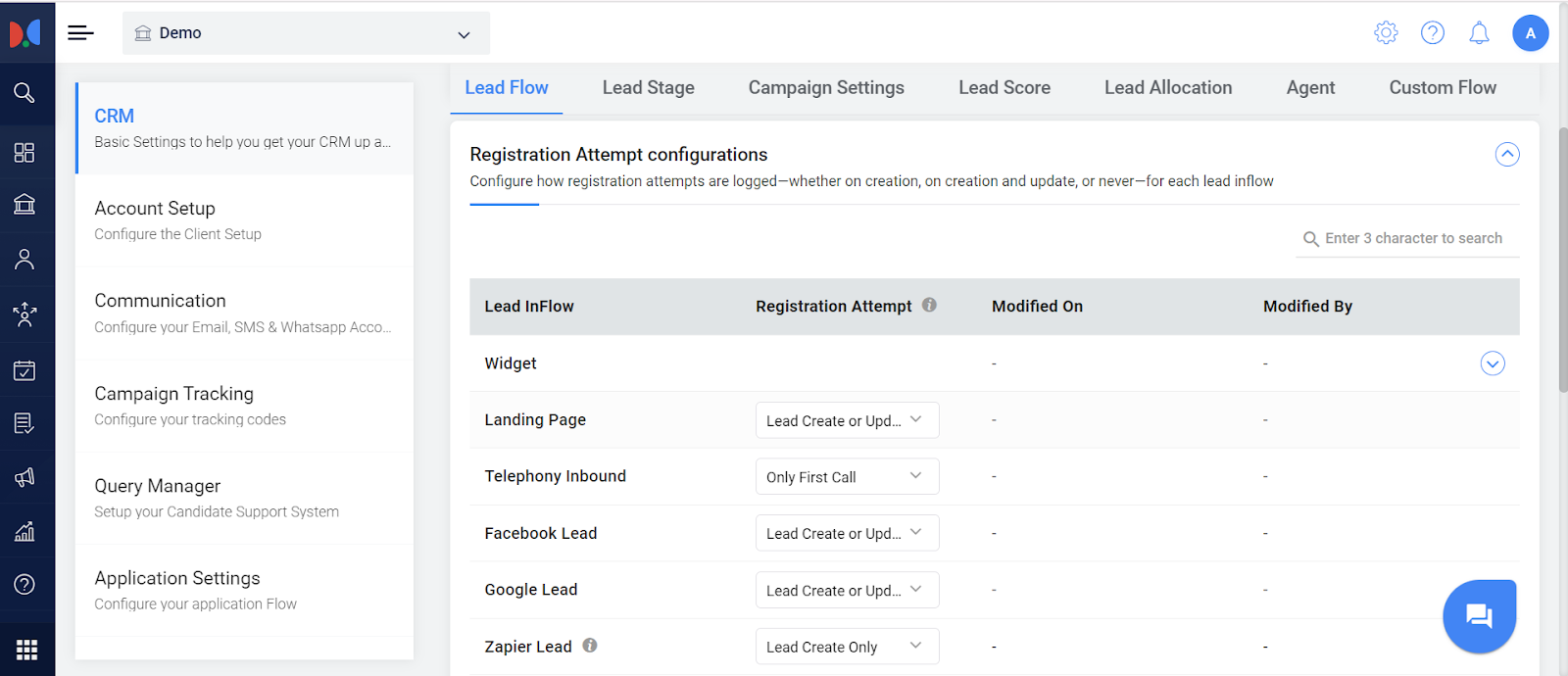


Registration Attempt Configuration Table:

The table below outlines the various scenarios under which a registration attempt is logged. The values highlighted in blue represent the default settings. If no changes are made to the configuration, the registration attempt will follow these default behaviors.


Lead Inflow Dropdown Options Additional Comments
Add Quick Lead Lead Create Only   Never  
Bulk Offline Upload Based on the key

Registration Attempt field in the sheet
Based on the key

Registration Attempt field in the sheet.
Never The values of the Registration field are Yes|No.

If "Yes", then the registration attempt will be incremented for that lead import.
If "No", then the registration attempt will not be incremented for that lead import.

If the key is not sent, then the "Registration attempt" will not be increased.
Widget Lead Create Only Lead Create or Update Never By default, all widgets will be selected and configured for the "default" selection of the registration attempt. If all are selected, then the rest two dropdown options will be disabled in the Widget.
Landing Page Lead Create Only Lead Create or Update Never  
Telephony Inbound Only First Call Every Call Never  
Facebook Lead Lead Create Only Lead Create or Update Never  
Google Lead Lead Create Only Lead Create or Update Never  
Zapier Lead Lead Create Only Lead Create or Update Never  
Lead from Opportunity On Creation of Lead   Never  
Application Manager (Upload Single Application) On Creation of Lead   Never  
Application Manager (Upload Bulk Application) Based on the key

Registration Attempt field in the sheet
Based on the key

Registration Attempt field in the sheet.
Never The values of the Registration field is Yes|No.

If "Yes", then the registration attempt will be incremented for that lead import.
If "No", then the registration attempt will not be incremented for that lead import.

If the key is not sent, then the "Registration attempt" will not be increased.

NOTE: Should work on both the new bulk application upload and old application upload.
Niaa Web (Web, Facebook) Lead Create Only Lead Create or Update Never  
WABA (Whatsapp Message) Lead Create Only   Never  
Publisher API  Lead Create Only   Never  
API (Based on the keys)        
Client API Lead Create Only | Based on the key (field_registration_attempt: Yes) Based on the key (field_registration_attempt: Yes) Based on the key (field_registration_attempt: No) If the key is not sent, then the default behavior of the registration attempt should work.
Lead Create API Based on the key (field_registration_attempt: Yes) Lead Create Only | Based on the key (field_registration_attempt: Yes) Based on the key (field_registration_attempt: No) If the key is not sent, then the default behavior of the registration attempt should work.
Lead Update API     Never If the key is not sent, then the default behavior of the registration attempt should work.
Create or Update API Lead Create Only | Based on the key (field_registration_attempt: Yes) Based on the key (field_registration_attempt: Yes) Based on the key (field_registration_attempt: No) If the key is not sent, then the default behavior of the registration attempt should work.
Widget API (Dataporting) Lead Create Only | Based on the key (field_registration_attempt: Yes) Based on the key (field_registration_attempt: Yes) Based on the key (field_registration_attempt: No) If the key is not sent, then the default behavior of the registration attempt should work.
Gmail Connector On Creation of Lead Lead Create or Update Never  
Outlook Connector On Creation of Lead Lead Create or Update Never  


FAQs

How registration attempts are captured for APIs?

Users can use a registration attempt field key to pass on a registration attempt when sending hits via API. This ensures accurate tracking and updating of registration attempts across systems and processes. Use the key field_registration_attempt in your API payloads:

  • If the field_registration_attempt is present, its value will increment the registration attempt count.
  • If not present, the system will follow existing logic (e.g. Count on Creation, Count on Creation and Update, Never).

Values passed here: Yes | No. This field is optional and maintains backward compatibility.


How registration attempts are captured using the Bulk Offline Upload/ Upload Bulk Application?

Use the "Field Registration Attempt" key to pass a registration attempt during Bulk Offline Upload/ Upload Bulk Application. 

     • If the "Field Registration Attempt" has a value of "Yes", this would increase the registration attempt count for the lead by 1.
     • If the "Field Registration Attempt" has a value of "No", then the registration attempt will not be updated.
     • If the "Field Registration Attempt" is absent, the system will not update the registration attempt for the lead.
     Values passed here: Yes | No. This field is optional.

How registration attempts are captured using the Widget?

You can configure each widget to a registration attempt type, which gives you the ability to capture the registration attempts from the specified widgets.

By default, the new widgets will fall into the “On Create and Update” category.
If any widget is unselected, then by default it would work as “On Create and Update”.

    • Related Articles

    • Configuring the Registration Form for the User Signup/Registration & Student Profile

      Overview This article serves as a guide for configuring which data fields appear on your user signup or registration form using the Lead Fields module. By specifically controlling field visibility, you ensure you collect only the necessary ...
    • Configuring CRM Lead Flow Logic

      Overview The Lead Flow Configuration allows setting rules for Lead Verification, Mobile Number Validation, and Registration Attempts. These configurations control how leads are verified, how mobile numbers are managed during lead creation, and how ...
    • DLT Registration for SMS Services Mandatory

      Overview The Telecom Regulatory Authority of India (TRAI) has mandated that all organizations sending SMS communications must register on the Distributed Ledger Technology (DLT) platform. This initiative is aimed at: Reducing unsolicited commercial ...
    • DLT Header Registration Process on VILPower

      Overview The DLT (Distributed Ledger Technology) registration process is mandatory for sending SMS communications in India. Registering a Header (Sender ID) is the second step in this process. This article outlines the step-by-step procedure for ...
    • DLT Phase 2 Template Registration - Telecom Platform Wise

      Overview In Phase 1 of DLT (Distributed Ledger Technology) implementation, which went live on June 1, 2020, Entity Registration and Header Registration were mandatory. With Phase 2, entities must register their Content Templates on the respective DLT ...